
How to Compress a PDF to 100 KB (and When It Can't Be Done)
To get a PDF under 100 KB, upload it to Compress PDF to 100 KB: the tool lowers the image quality step by step and stops at the best quality that fits. In our tests, scans of 1 to 10 pages all fit under 100 KB, but a 30-page scan didn't even reach 200 KB, and a long text-only PDF can't shrink at all. If yours won't fit, send fewer pages.
Why 100 KB is hard
A PDF is mostly made of two things: images (scanned pages, photos, logos) and text with its fonts. Compression works on the images. It lowers their resolution and saves them with stronger JPEG compression. Text can't be squeezed the same way, because it is already stored efficiently and turning it into a blurry picture would make it worse.
So two kinds of PDF are easy to get under 100 KB: one or a few scanned pages, and short documents with a photo or two. Two kinds are hard: long scans, where every page still needs a few kilobytes even at the lowest quality, and long text documents, whose size comes from text and embedded fonts rather than images.
How to compress a PDF to 100 KB
- Open Compress PDF to 100 KB. The target is already set to 100 KB.
- Click Pick PDF and choose your file (up to 50 MB and 500 pages).
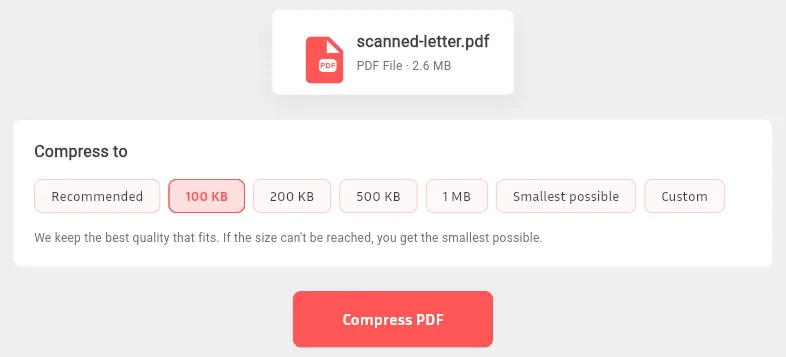
- Under Compress to, 100 KB is already selected. Click Compress PDF.
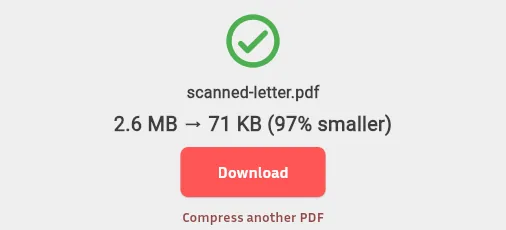
- Check the result screen. It shows the original size and the new size, and says clearly if 100 KB could not be reached.
- Download the file, open it, and zoom in on any small print before you send it.
Compress your PDF to 100 KB now →
Need a different limit? Pick 200 KB, 500 KB or 1 MB in the same row, or choose Custom and type any size in KB or MB. There are also direct pages for 200 KB, 500 KB and 1 MB, and the general Compress PDF page.
Real results from our own tests
These numbers come from TypeorDrop's compression test suite, which runs the same code as the live tool. The test scans are photo-like A4 pages scanned at 300 dpi, about 1.3 MB per page, which is a hard case: real scans of black text on white paper usually compress better.
| Test file | Original size | Result at a 100 KB target |
|---|---|---|
| Scan, 1 page | 1.3 MB | 91 KB |
| Scan, 2 pages | 2.6 MB | 71 KB |
| Scan, 3 pages | 3.9 MB | 61 KB |
| Scan, 5 pages | 6.5 MB | 52 KB |
| Scan, 10 pages | 12.9 MB | 95 KB, just under the limit, at the lowest resolution |
| Scan, 30 pages | 39 MB | Didn't reach 100 KB; even a 200 KB target ended at 274 KB |
| Text document, 120 pages | 426 KB | Can't be made smaller; the original is returned unchanged |
Two things stand out. Smaller results for more pages are not a mistake: the tool picks a lower resolution when it has more pages to fit, so the 5-page result is softer than the 1-page one. And the 10-page scan only just fit, at the lowest setting, so a longer scan of this kind has no room left.
Recommended or Smallest possible?
Besides the fixed sizes, the Compress to row has three other choices:
- Recommended: good quality, much smaller. Scans stay readable, and files usually come out 70–90% smaller. Our 3-page test scan went from 3.9 MB to 616 KB, and the 10-page scan from 12.9 MB to 2.0 MB.
- Smallest possible: the strongest compression. The 3-page scan went down to 30 KB, but scans and photos look clearly softer.
- Custom: type a size such as 100 KB, 250 KB or 2 MB. The tool stops at the first setting that fits, so you keep as much quality as the limit allows.
Use a size target when a website gives you a limit. Use Recommended when you just want a smaller file to email or share.
Tips when a PDF won't go under 100 KB
- Send only the pages you need. Use Split PDF to keep just those pages, then compress the shorter file. Fewer pages leave more room for each one, so try this first.
- Split into parts. If a website accepts several uploads, split a long document into two or three files and compress each one.
- Rescan in black and white or grayscale at 150–200 dpi instead of color at 300 dpi.
- Start from a photo instead of a scan. If you photographed a single page, compress the photo with Compress Image and turn it into a PDF with JPG to PDF.
- Text-heavy PDF? Compression can't help much. Remove pages you don't need, or ask whether the website accepts a larger file.
Troubleshooting
The result screen says 100 KB wasn't reached. You still get the smallest version we could make. Remove pages with Split PDF and try again.
The text looks blurry. At very small sizes, scanned pages are saved at a low resolution. Try a 200 KB target if the website allows it, or send fewer pages so each page gets more room.
"This PDF is password-protected." PDFs that need a password to open can't be compressed. Open it with the password, save a copy without one, and upload that.
"PDFs over 500 pages aren't supported." Split the document into parts first.
The file came back the same size. The PDF is mostly text and fonts, or it was already compressed. The tool never returns a file bigger than the one you uploaded.
FAQ
Can every PDF be compressed to 100 KB?
No. One or a few scanned pages usually fit. Long scans and long text documents may not, because every page still needs some space. When the target can't be reached, the result screen says so and you get the smallest version possible.
Will compressing my PDF to 100 KB make it unreadable?
Usually not for one or two pages. Text that is real text stays sharp. Scanned pages and photos are saved at a lower resolution, so small print on a scan can look softer: check it before you send it.
What happens to forms, signatures and PDF/A?
Compression rewrites the file. Text, images, links and page order are kept, but PDF/A status is not, fillable form fields may not survive, and a digital signature becomes invalid because the file changed. Keep your original.
Is it free?
Yes. You can run 2 jobs a day without an account and 10 a day with a free account. Pro removes the daily limit and ads for $4 a month or $38.40 a year.
How long are my files kept?
Uploaded PDFs are deleted automatically within about 24 hours, and compressed results after 7 days.